



Nominal Role Updates for User Management
Tabs
If used improperly, the nominal role update system can cause major issues with user data within the LMS.
Please ensure you read all steps prior to using, if you have any outstanding questions / concerns please contact the CPKN help desk.
What is a Nominal Role Update?
The Nominal Role Update system is a system that allows administrators and portal administrators to update and create users in bulk within the LMS.
This is useful for mass updating user data via a spreadsheet (whether manually, or by exporting from a third party HR system.)
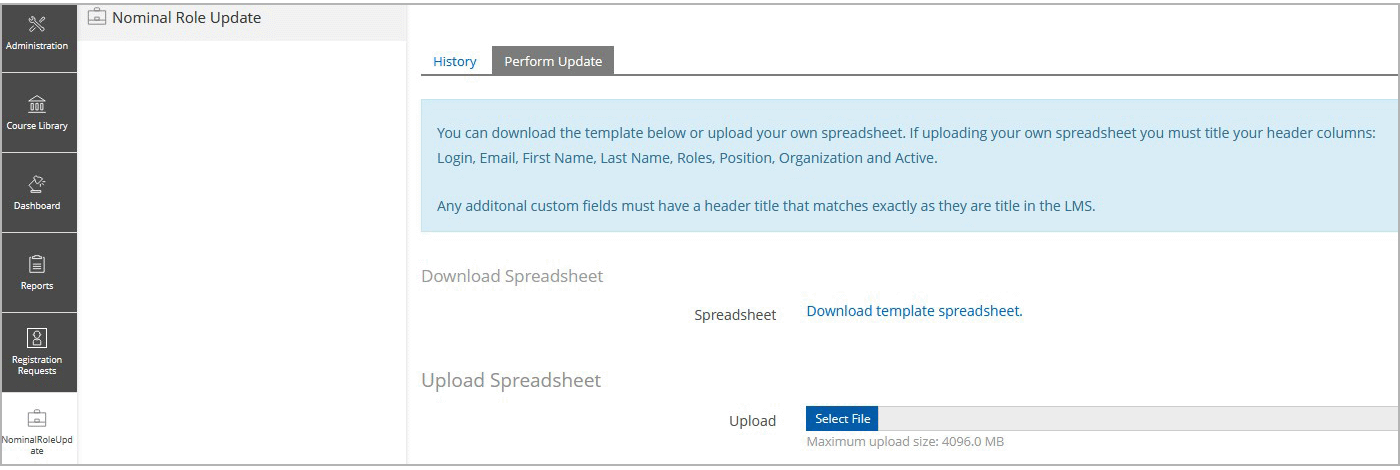
Click each of the steps below to learn how to complete a nominal role update.
Open the ‘Nominal Role Update’ tab, then click ‘Perform Update’. Under this tab, the
portal administrator will have the option to download a templated spreadsheet or upload a spreadsheet to begin a new update.
The Template Spreadsheet
The template spreadsheet available for download on this page has the following headers:
- Login – The user’s username
- This field is used to find the user in the LMS.
- First Name – The user’s first name
- Last Name – The user’s last name
- Email – The user’s email address
- Organization – The title of the organization the user is associated with
- The title will need to match the title in the LMS.
- Position – The position the user has in the organization
- By default, the LMS has two positions available, “Employees” and “Superiors”.
- Roles – A comma separated list of role titles
- Active – Whether the user should be active or inactive in the LMS
- This accepts three possible values: active/inactive, true/false, 1/0.

User Defined Fields
User Defined Fields (UDFs) are fields that are not standard to the LMS and are created by a portal administrator in the ‘User Management’ section (e.g., ‘Badge’, ‘HR Number’). The plugin will accept a spreadsheet that has 0 to many UDFs. The only requirement is that the column header must exactly match the name of the UDF in the LMS.
Non-Template Spreadsheets
It is not a requirement to use the template provided, however, if you use another spreadsheet, the column headers must match the naming conventions above. The order of the columns does not matter.
Only the first sheet of the file will be used, so all records must appear on the first sheet. Any additional sheets will be ignored by the plugin.
Upload Your Spreadsheet
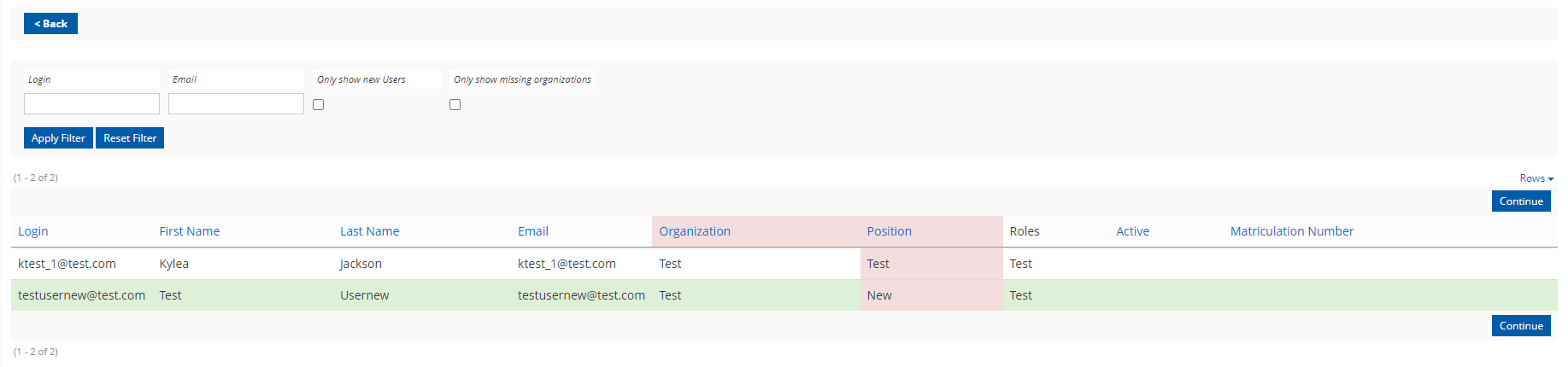
Complete the template or non-templated sheet and save it on your computer. Upload the saved sheet to the ‘Perform Update’ page, then click ‘Update’. Next, the user will be brought to a confirmation table. This will allow the uploader to verify that the spreadsheet is formatted correctly.

New Users
Any users not found using the value in the Login column will have a new account created. The confirmation table highlights a new user's row green. A filter option is available to only show new users.
Unknown Organization or Position
If the value in the organization column is not matched with an existing organization in the LMS, then the column will be highlighted red. Additionally, any organization positions that do not exist will be highlighted in red. A filter option is also available to only show unknown organizations.
Unknown Columns
If a column is included in the spreadsheet that is not one of the standard LMS fields, then the plugin will check to see if it is a UDF. If the column is a UDF, then it will be included in the update. If the column is neither a standard field nor a UDF, it will not be included in the update. All unknown columns are displayed above the table.
Confirm the Details
Once the portal administrator is satisfied that the information in the confirmation table is accurate, they can click ‘Continue’ to start the update.
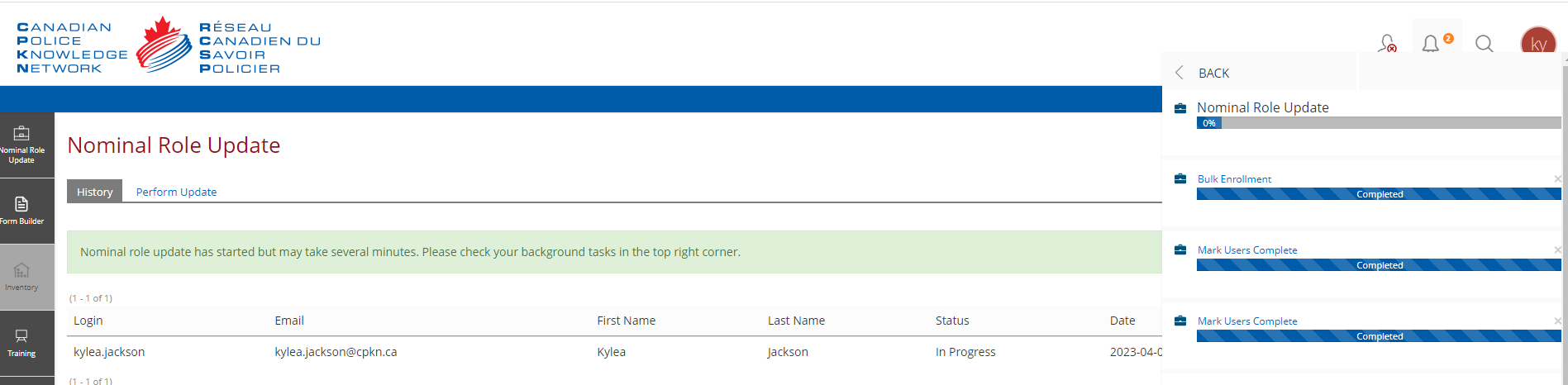
Depending on the number of rows in the spreadsheet, an update could take several minutes to complete. For this reason, the update runs in the background, which allows the portal administrator to continue using the LMS while the update is being performed. The user can see the progress of the update in the top right-hand corner.
Most fields, like first and last names, will simply be updated to what is included in the spreadsheet. However, the fields for organization and roles are updated in the following way:
- Organization - If the organization exists in the LMS, then the user will be removed from all organizations and assigned to the organization in the spreadsheet. If the position column is included and the position exists, the user will be assigned that position. If a valid position is not included, then the user will be assigned the Employee position.
- Roles - More than one role can be assigned to a user. If assigning multiple roles, a comma-separated list must be used (e.g., “Sworn, Supervisor”). The user will also be removed from all global roles that are not included in the list except for the User, Administrator, and Portal Administrator roles.
Once the update is complete, the user will see an option to download an error log. The error log will log the following issues:
- Unknown Role - The user was not added to a role because the role does not exist.
- Unknown Organization - The user was not added to an organization because the organization does not exist.
- General Exceptions - Any other exceptions that occurred while either creating or updating a user.
