


Organizational Units
Tabs
Organizational Units (OUs) represent the structure of an organization, like departments and sub-departments. They're generally used for reporting functionality so that users at the head of a department can report on people within their department but not see the data of other users in other departments.
Click play to learn about Organizational Units.

Click each panel to learn more.
Creating an Organizational Unit
To create an organizational unit:
1. From the ‘Administration’ tab, click ‘Organizational Units’.
2. Once on the ‘Organizational Units’ screen, click ‘Add New Item’.

3. In the ‘Title’ field, type the name of the organizational unit you are wanting to create. Then click ‘Add Organizational Unit’.

Adding a User to an Organizational Unit
If you intend to use the LMS’ Reporting function, or if you intend to organize users in Organizational Units (OUs), you need to ensure that users have been added to an OU.
To add a user to an OU:
To add a user to an OU:
- From the ‘Administration’ tab, click ‘Organizational Units’.
- On the ‘Organizational Units’ screen, select the OU that you would like to add a user to.
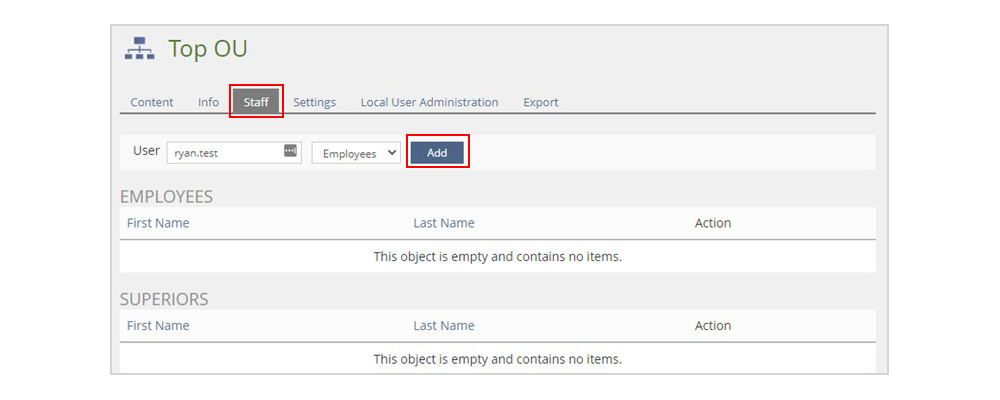
- Once the OU opens, click the ‘Staff’ tab.
- Enter the user’s login information and click ‘Add’. This will add the user to the OU.