



Re-Enrolling Individual Users to Courses
Tabs
1. Locate the applicable course from the course catalogue.
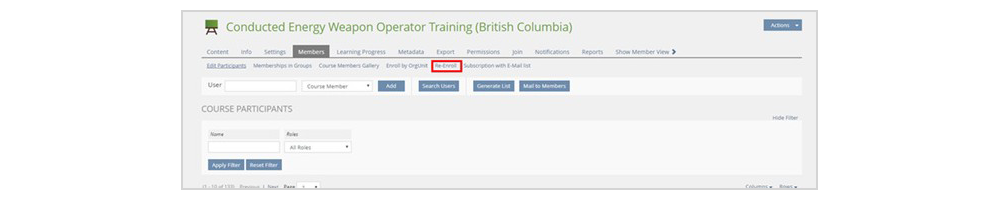
2. On the course main page, click the ‘Members’ tab, then click ‘Re-Enroll’. This will give you the option to re-enroll one user or do a bulk re-enrollment.
3. If re-enrolling a single user, type the users name under the username, click ‘Apply Filter’, then select the user from the list.
If doing a bulk re-enrollment, click ‘Bulk Re-Enroll’, then enter user emails/logins in the text area provided making sure to separate each one with a new line.
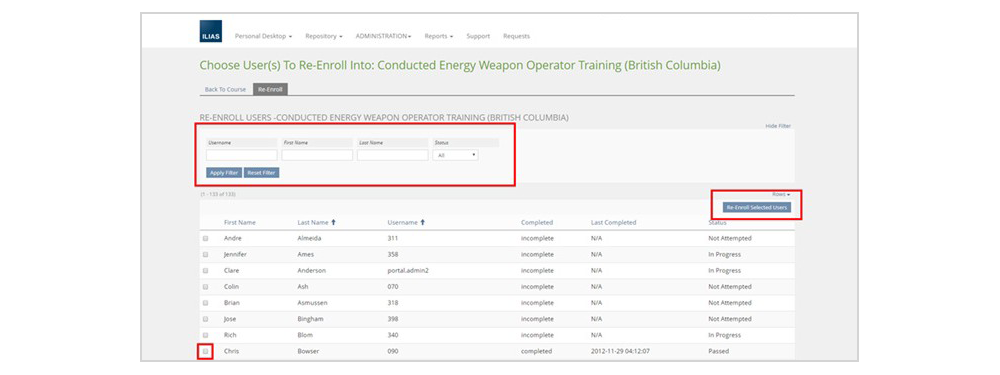
4. Click ‘Re-Enroll Selected Users’ or ‘Re-Enroll’. When a user is re-enrolled in a course their training records (for completed courses) are moved to the history tab where they can be viewed.