


Courses Per User and Courses Per User Detailed
Tabs
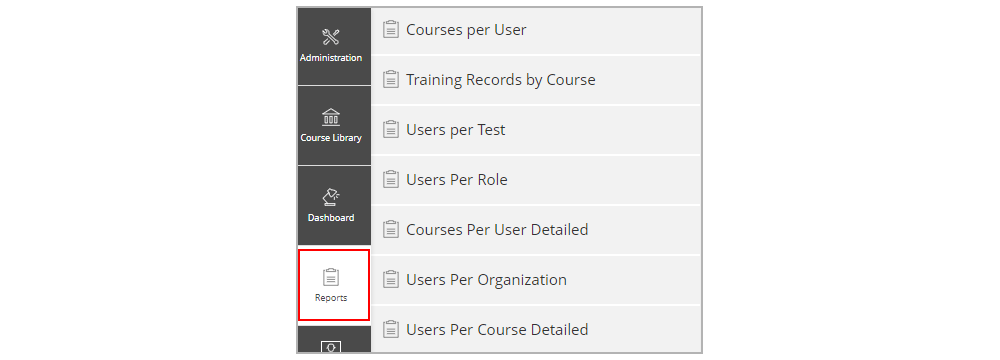
Typically, reports are run either with Training Records by Course or Courses Per User, though there are other options available such as Users Per Test, Users Per Role, Courses Per User Detailed, Users Per Organization, and Users Per Course Detailed.
Courses Per User and Courses Per User Detailed will let you choose a user and see the progress of courses they have been assigned.
Click the panel to follow along with the steps.
Click on the ‘Reports’ tab, then click ‘Courses Per User’ or ‘Users Per Course Detailed’.
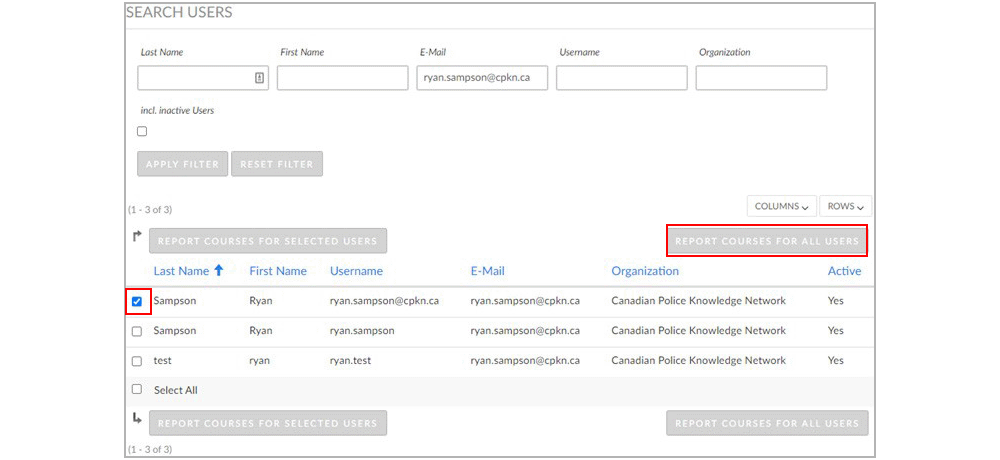
Note: You can search users with specific filters, click on the checkbox next to individual users, and then click ‘RE- PORT COURSES FOR SELECTED USERS’. Or you can report for all users showing on the current page by clicking ‘REPORT COURSES FOR ALL USERS’.
Choose the appropriate account and click ‘REPORT COURSES FOR SELECTED USERS’.
This will generate a list of all courses the user is registered in and their progress.
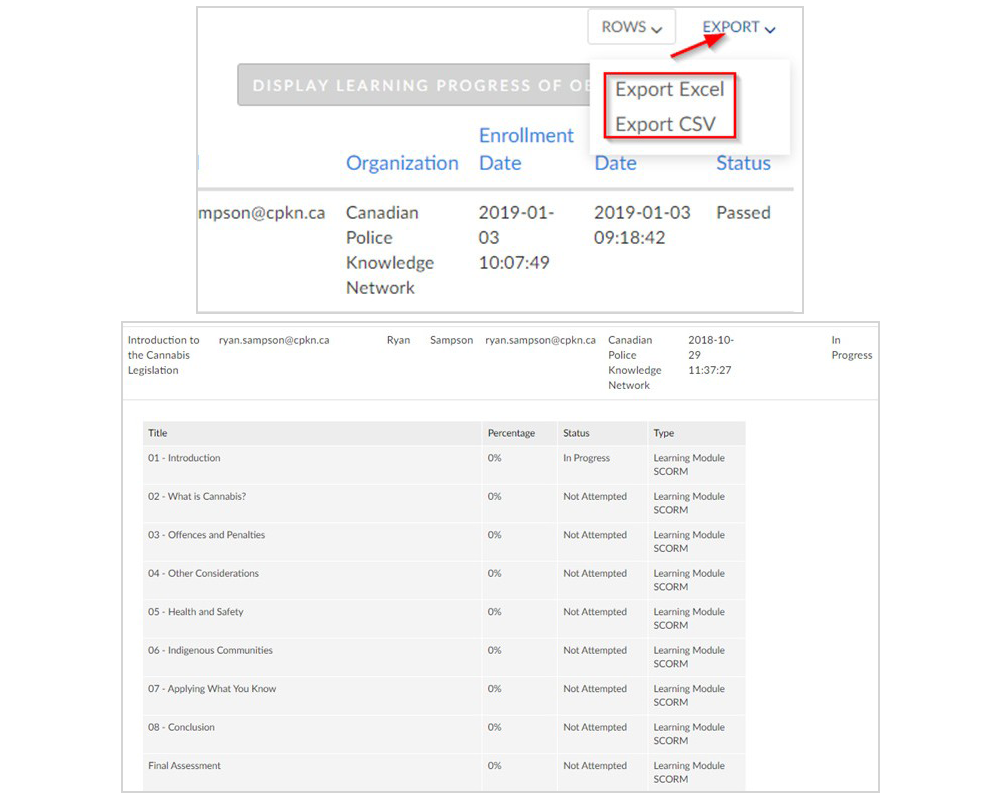
From here, you can look at course progress, and export this information to a .csv or .xlsx file through the ‘Export’ button.
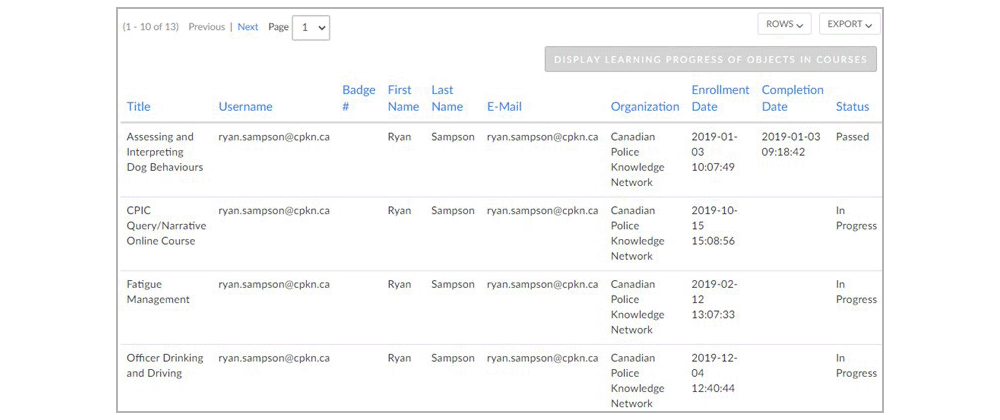
You are also able to click ‘DISPLAY LEARNING PROGRESS OF OBJECTS IN COURSES’ to see progress of individual sections of courses that may have more than one module.