



Creating a Survey
Tabs
What is a survey?
The LMS survey functionality allows instructors / administrators the ability to add surveys either standalone or as a part of a course offering. This is useful for:
- Data collection.
- Evaluating courses.
- Evaluating students knowledge before starting a course.
Adding a survey
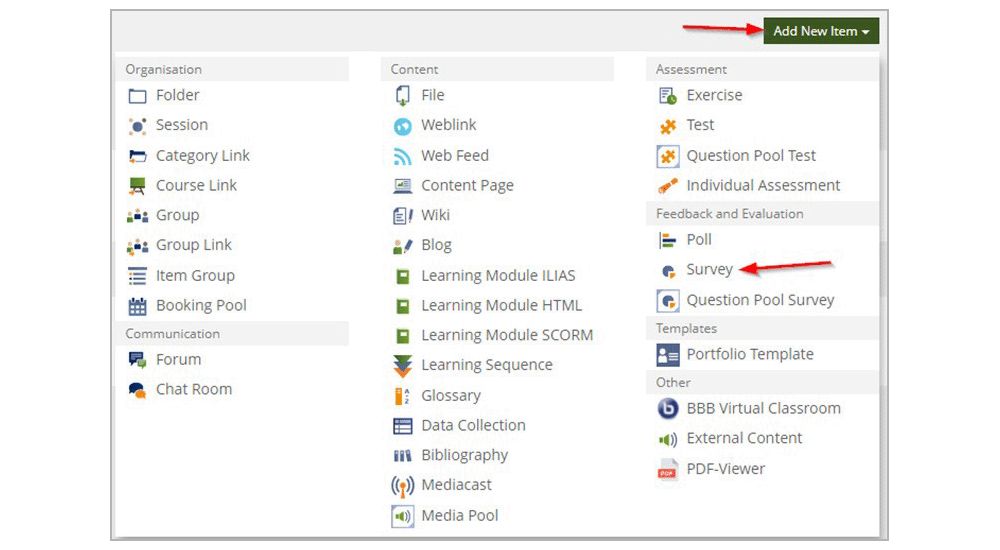
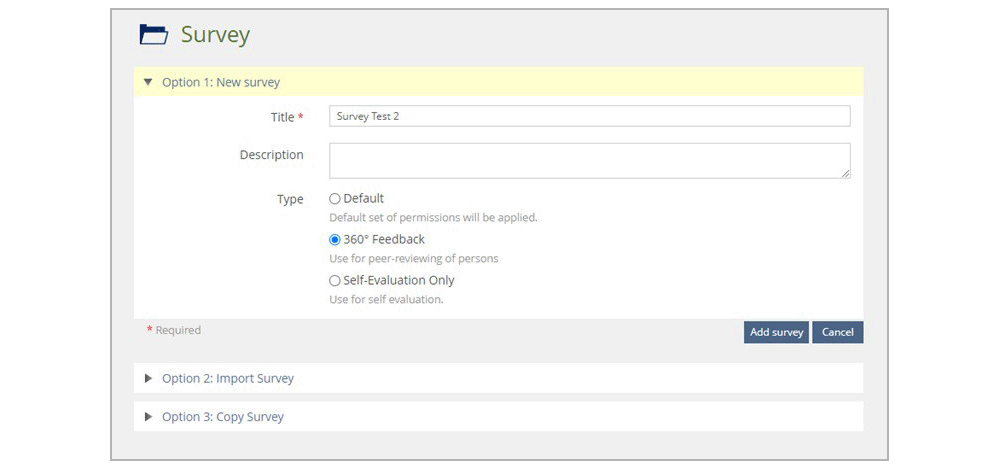
A survey can be created in the LMS through the ‘Survey’ option under ‘Feedback and Evaluation’ section of the items list.
- Default
- 360° Feedback for peer-reviews
- Self-Evaluation
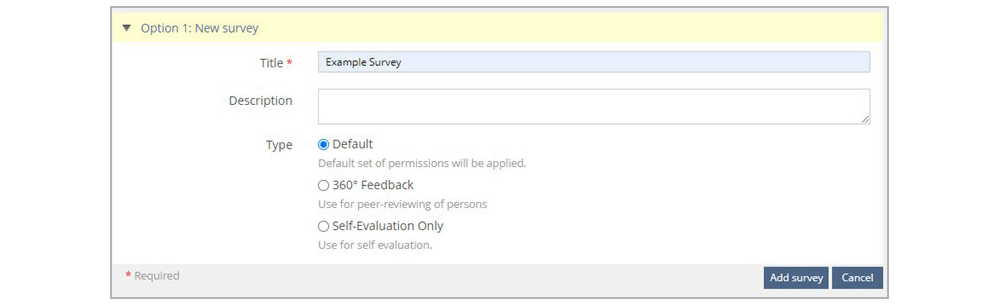
Surveys: Default
The two options here are to use either questions from a question pool or to create questions in the survey.
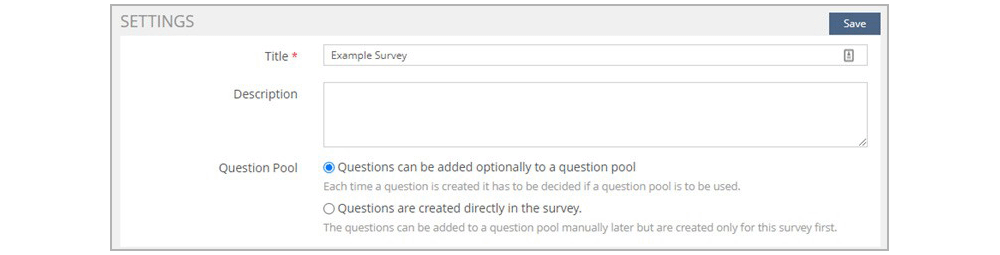
There are multiple fields and sections to complete for your survey:
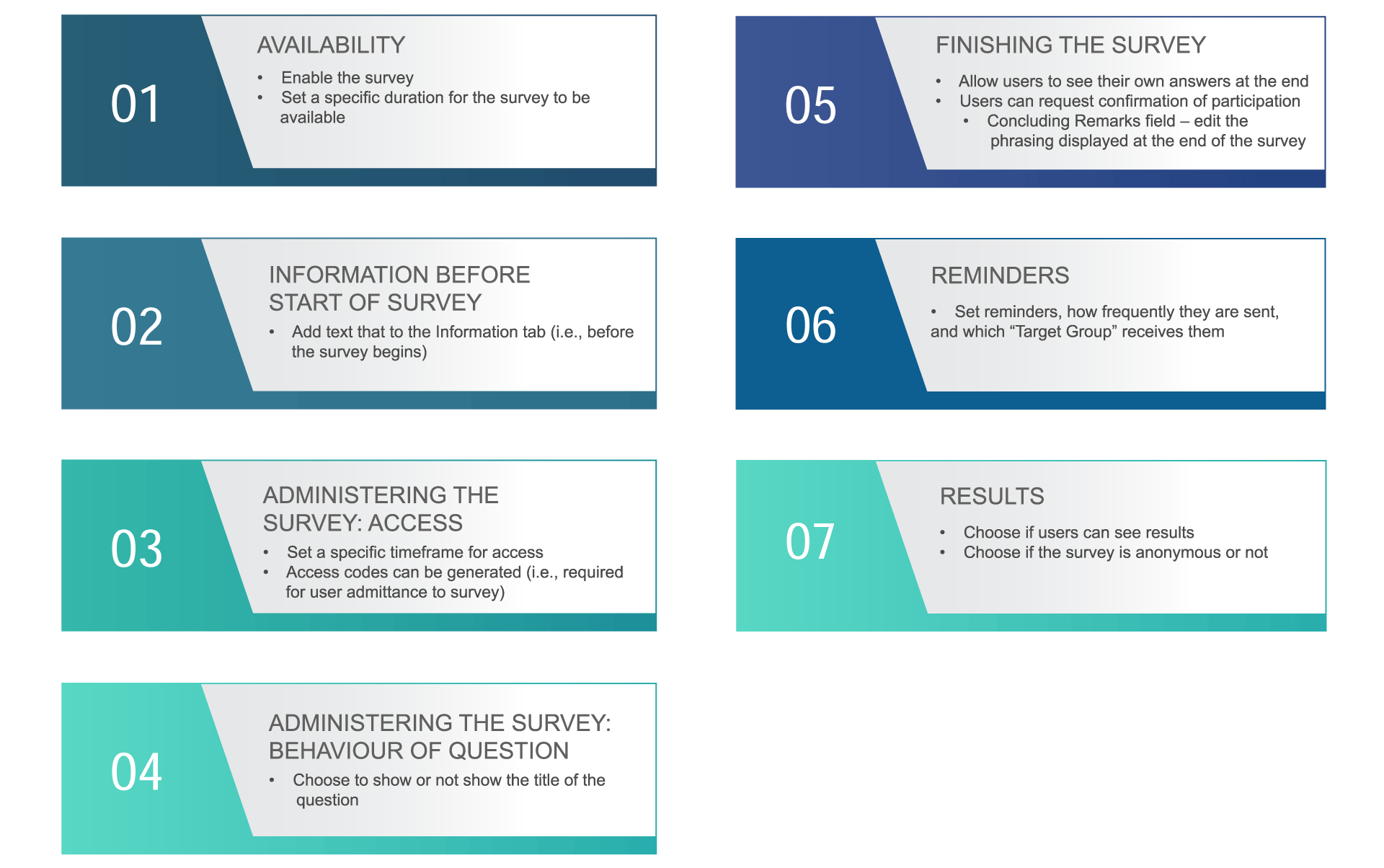
Adding Questions to Your Survey
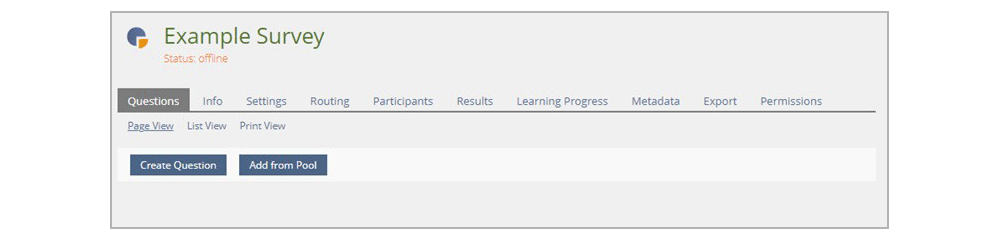
Questions can be added through the ‘Questions’ tab. From there, you can choose to create a new question or add a question from a pool.
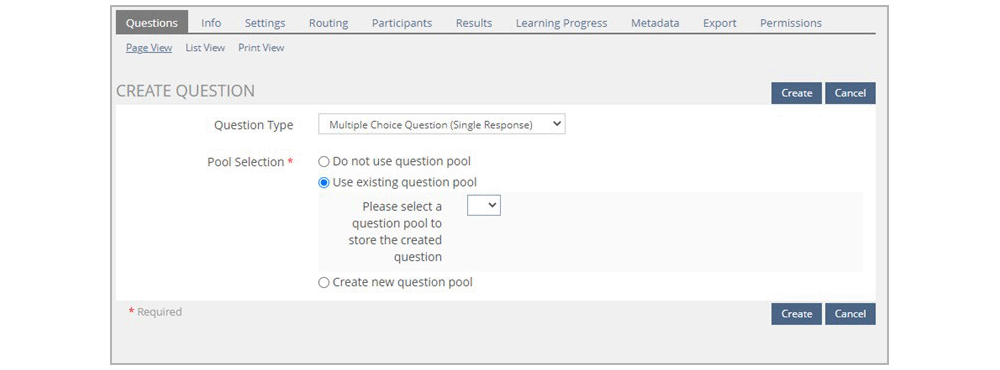
When creating a question, you can choose whether to use a question pool, use an existing question pool, or to create a new question pool.
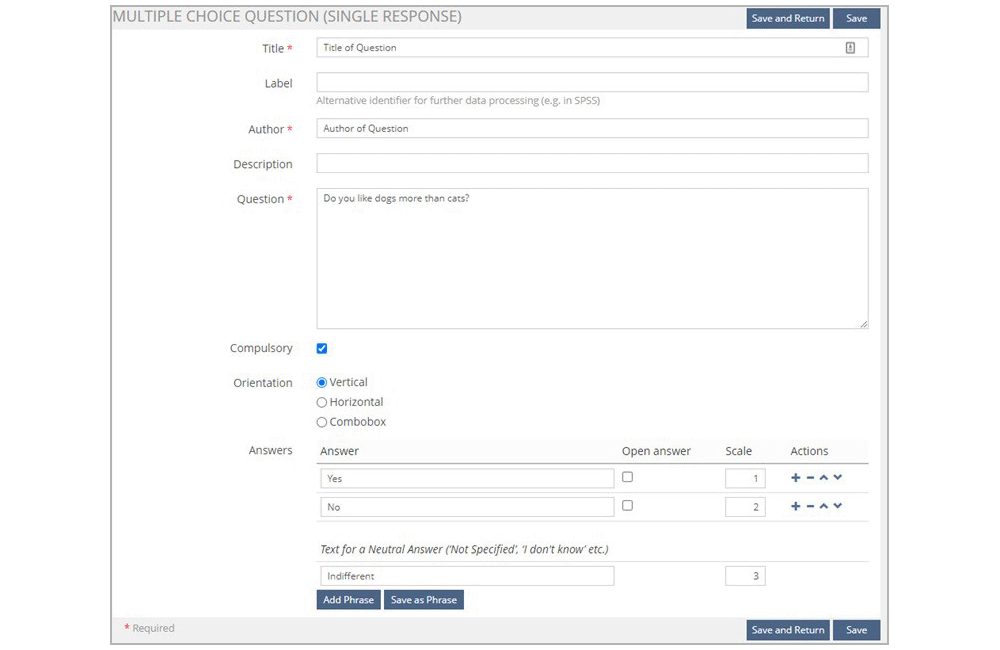
There are 5 question types. Click each of the question types to learn more.
- The ‘Compulsory’ checkbox is used to make a question mandatory.
- The ‘Orientation’ option allows you to choose the answer layout.
- The ‘Answers’ section has a ‘Scale’ column to arrange the answers. Answers can be added/removed/rearranged under the ‘Actions’ column.
- The ‘Open’ column allows the user to enter text in a text field for additional details.
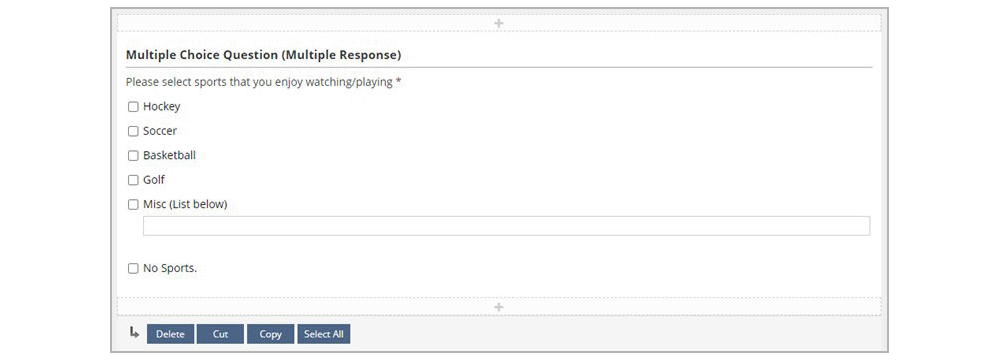
The Multiple Choice Question (Multiple Response) is set up the same as a Multiple Choice Question (Single Response). The difference is that users can choose multiple correct answer options.
Matrix Questions allow you to list rows of options and have different columns for how users feel about each option (e.g., Neutral, Agree, Strongly Agree, etc.)
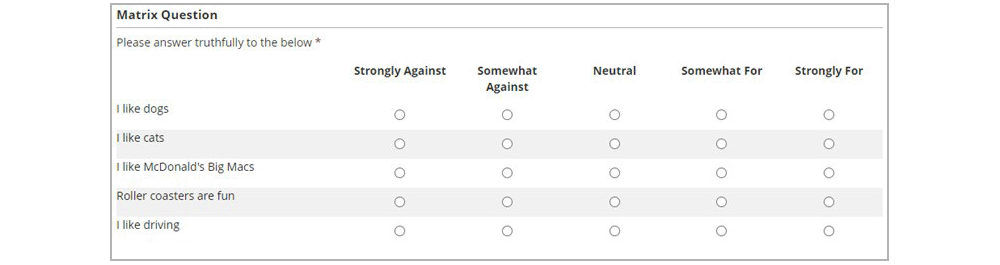
- APPEARANCE’ section is where you can choose how the information is displayed
- ‘MATRIX COLUMNS’ section allows the survey taker to choose which columns apply to the different rows
- ‘Bipolar Adjectives’ will allow you to describe the low and high ends of the columns.
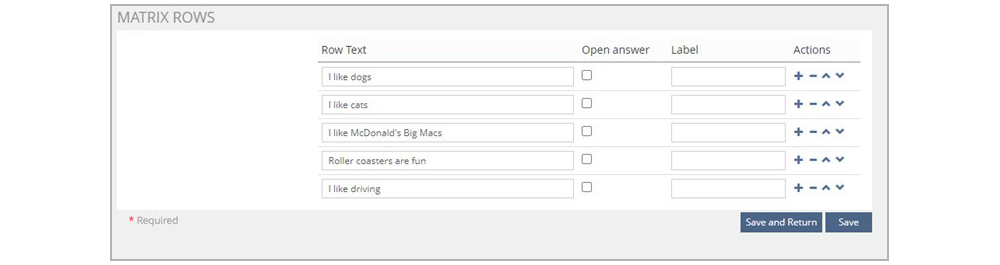
- ‘MATRIX ROWS’ allow you to set up the questions for the columns the survey taker will choose.
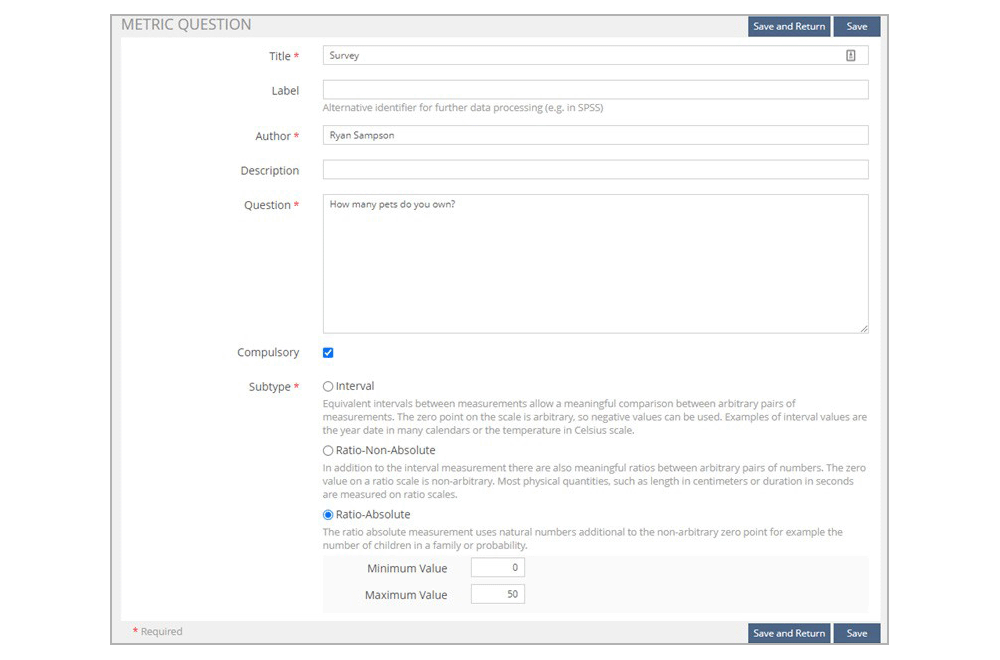
The metric question type will allow the user to input a number based on a question.

- ‘Ratio-Non-Absolute’ would work for values like weight, length, or duration.
- ‘Ratio-Absolute’ would be good for counting.
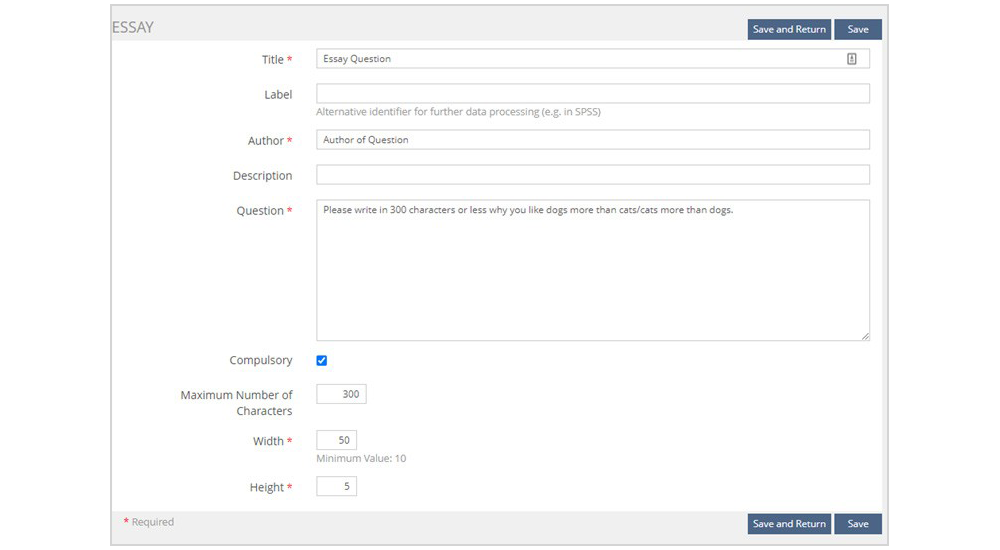
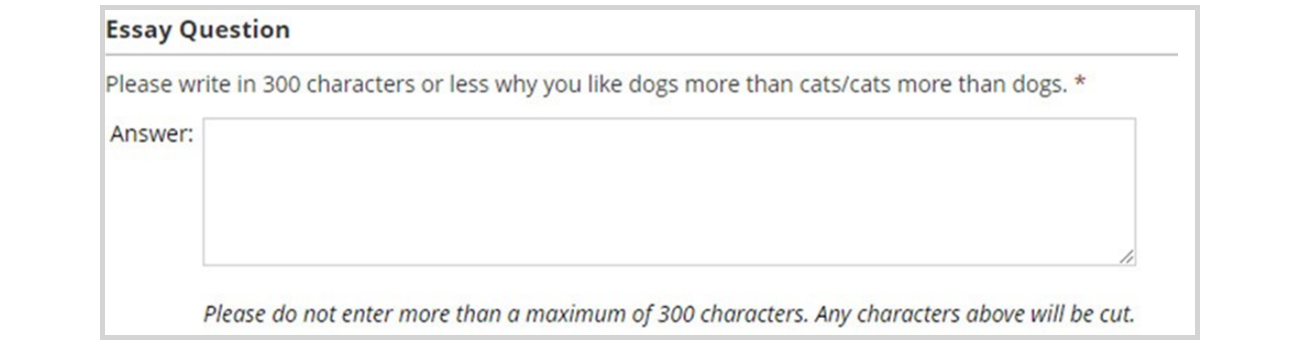
Essay questions will allow you to provide a prompt for the user to write about, and ask the user provide feedback in writing.
Click each of the tabs to learn more about them.
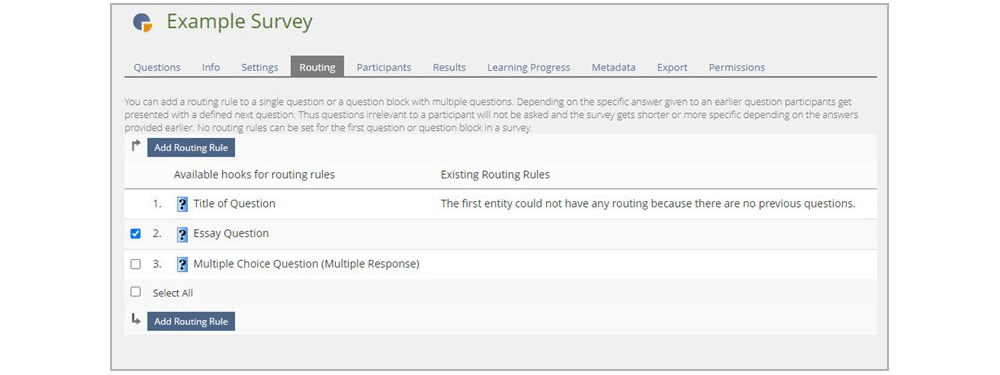
Questions can be routed based on their answers. In the Routing tab of the survey, click on the checkbox next to the question you want to be routed to, and click ‘Add Routing Rule’.
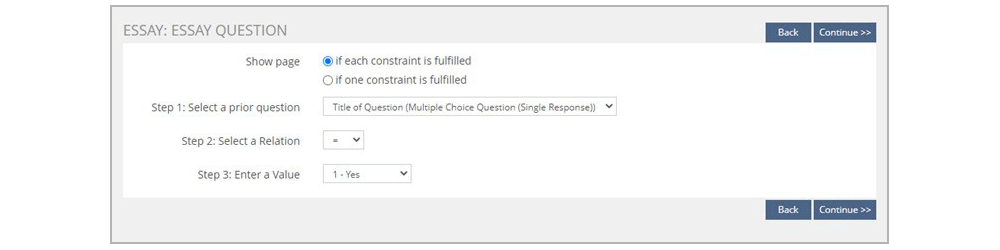
You will select whether you want each constraint to be fulfilled or one constraint to be fulfilled (in this case, there is only one). Next, select the question in the survey that will be linked to this question.
After clicking ‘Continue’, you will be asked to select the relation and the value to trigger this rule. Once saved, the rule will show up in the ‘Routing’ tab next to the question that will be routed to.
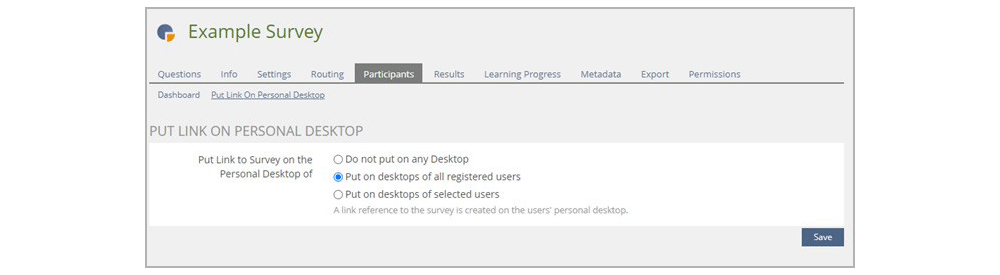
The ‘Participants’ tab will show you all users who have participated in the survey. You can also click ‘PUT LINK ON PERSONAL DESKTOP' to add the survey to the personal desktops of all enrolled to the survey.
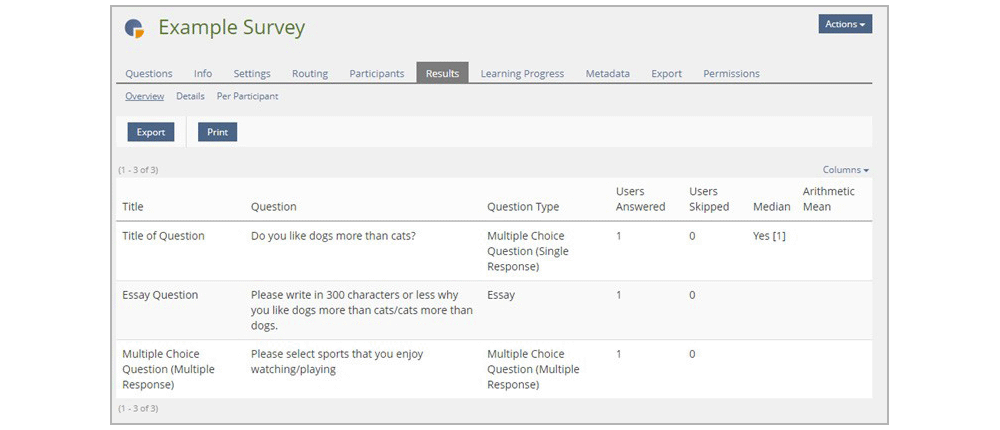
The ‘Results’ tab is where you can see the results of all users who have taken the survey.
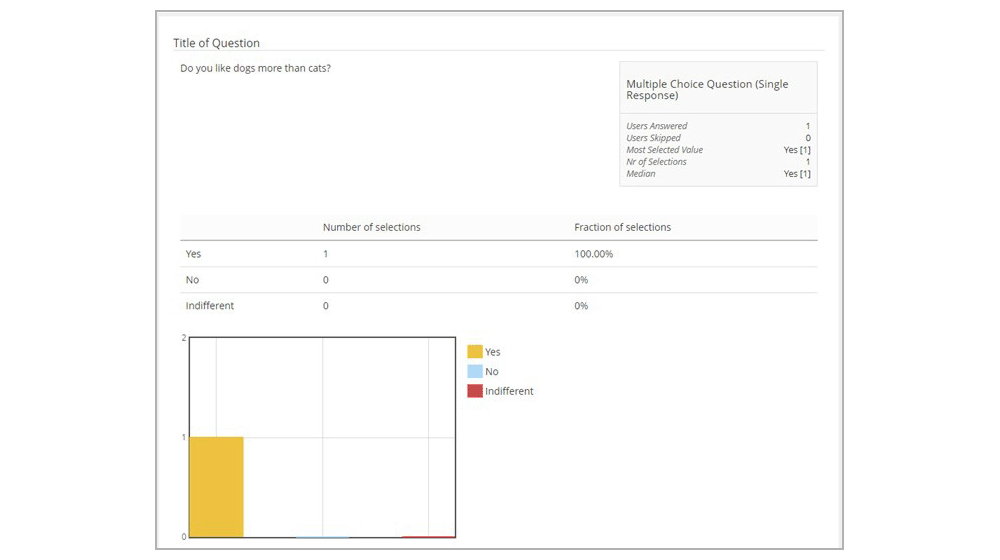
The ‘Details’ tab will show you an in depth look for each question.
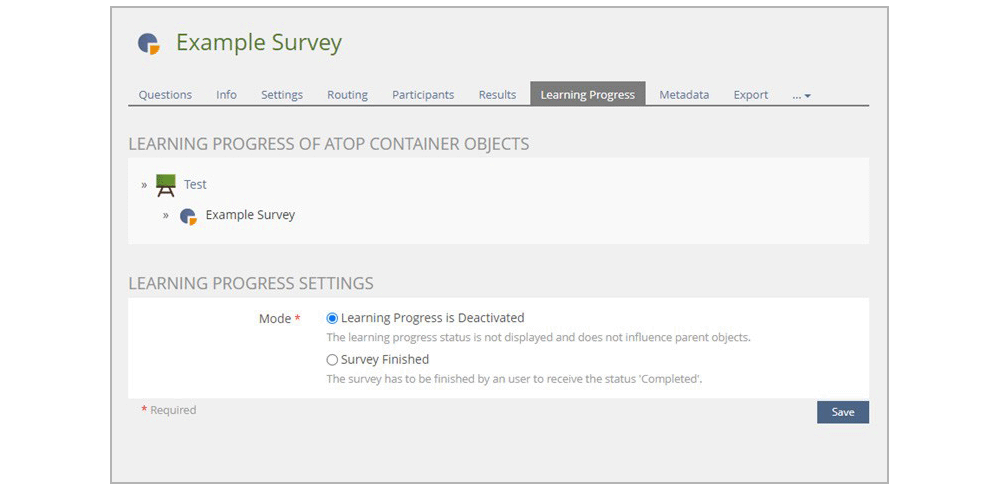
The ‘Learning Progress’ tab is where you indicate how the survey completion impacts learning progress.
For example: If you want the survey to be mandatory as part of completion of a course, you can select ‘Survey Finished’ in the in ‘Mode’ section.
Surveys: 360° Feedback
360° Feedback surveys are primarily used for the purpose of conducting a peer review. Question types are the same as in the Default survey style.
Refer to the section above, Adding Questions to Your Survey to learn more.
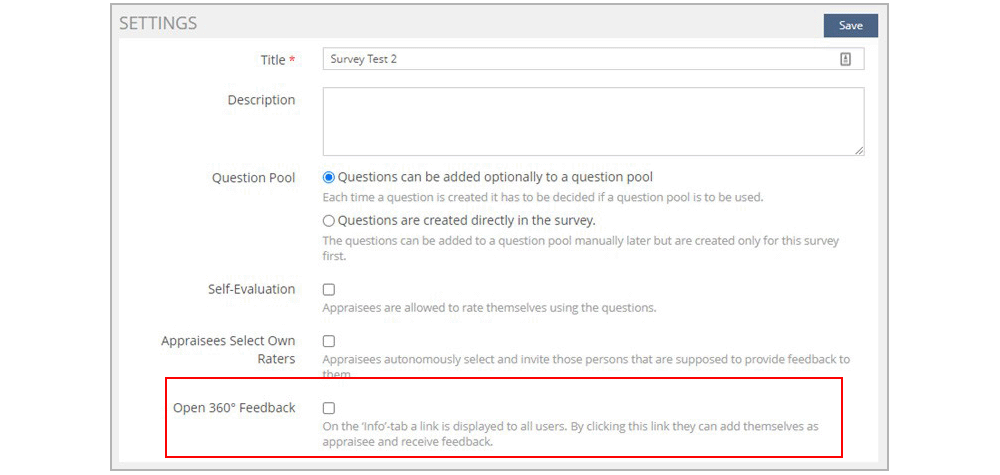
Self-Evaluation will allow users taking this survey to rate themselves using questions. You can also choose ‘Appraisees Select Own Raters’ to allow users to choose who will provide their feedback.
Open 360° Feedback allows users to add themselves as an appraisee and receive feedback as well.
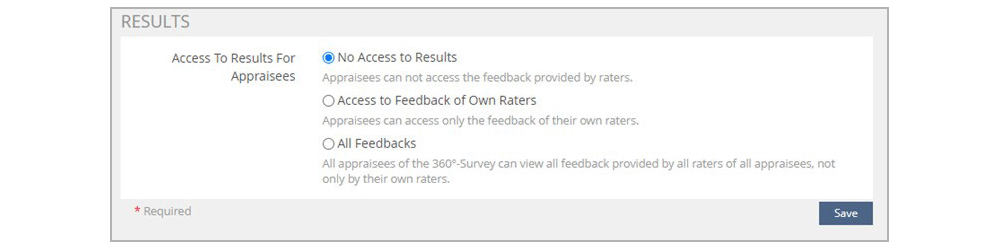
The ‘Results’ settings will allow you to set ‘No Access to Results’, ‘Access to Feedback of Own Raters’, and ‘All Feedback’.
Click the tab to learn more.
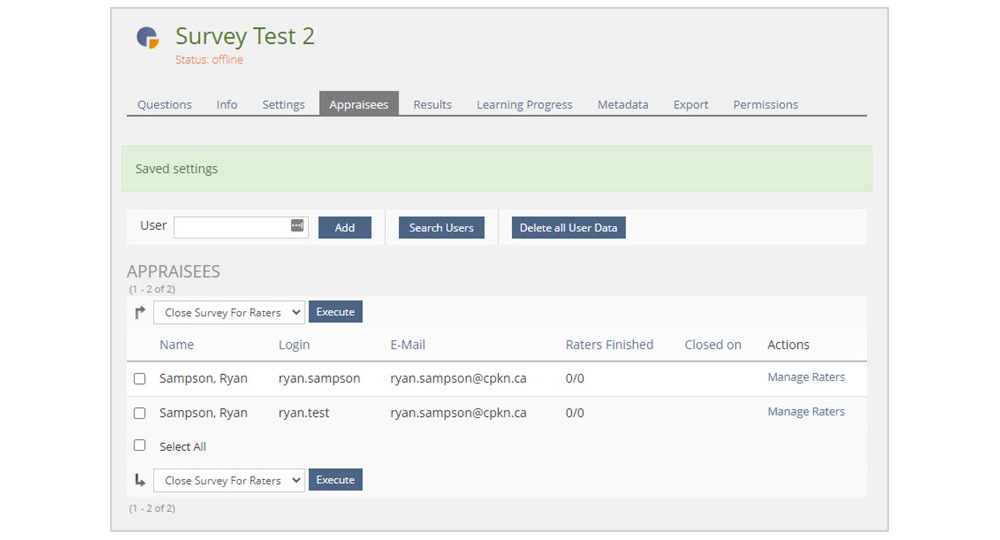
Rather than a ‘Participants’ tab, the 360° Feedback survey has an ‘Appraisees’ tab. Users can be added by searching their login details in the ‘User’ field and clicking ‘Add’.
Surveys: Self-Evaluation
The ‘Self-Evaluation Only’ survey type allows users added to a course to have access to the ‘Self-Evaluation’ survey in their ‘Participants’ tab.
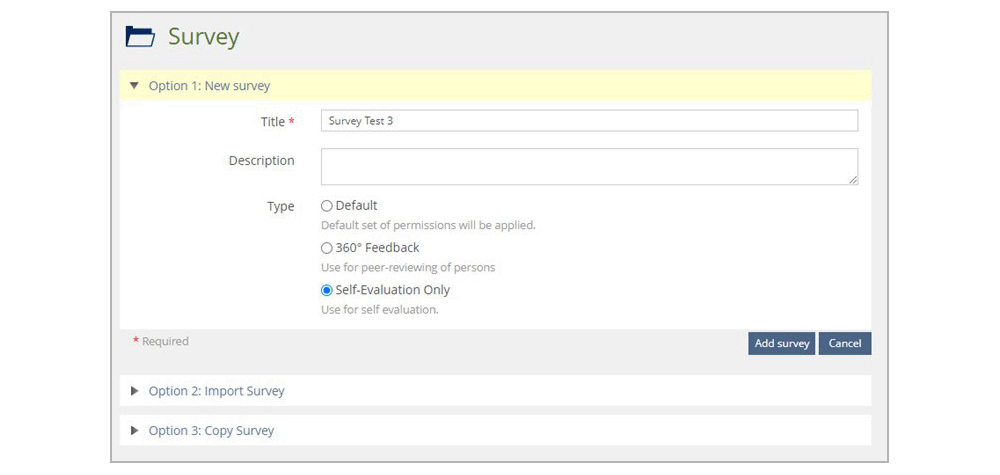
Managing the Self-Evaluation survey is almost the same as the Default survey, except there is no ‘Routing’ tab and the ‘Results’ section is different.
