



Scoring and Learning Progress
Tabs
The Participants tab shows learners enrolled and their test status – it is here you can view the test results. This page also allows ‘Delete Test Data of all Users’ – this is needed if changes to a live test are required.
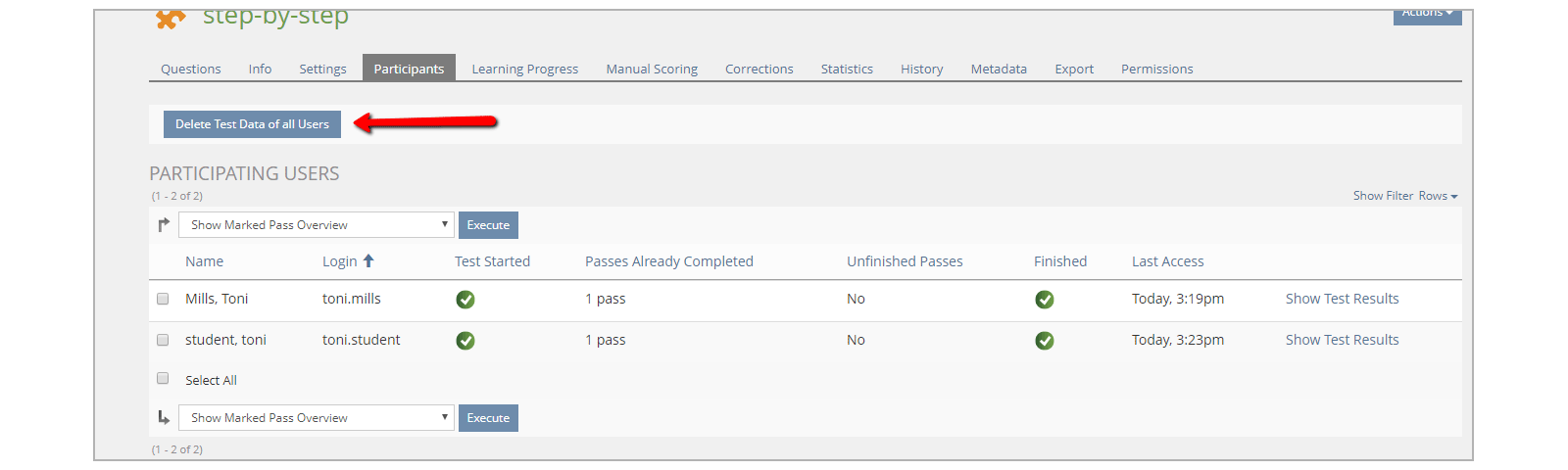
If learner data cannot be deleted, test changes may require creating an additional version.
Learning Progress Tab
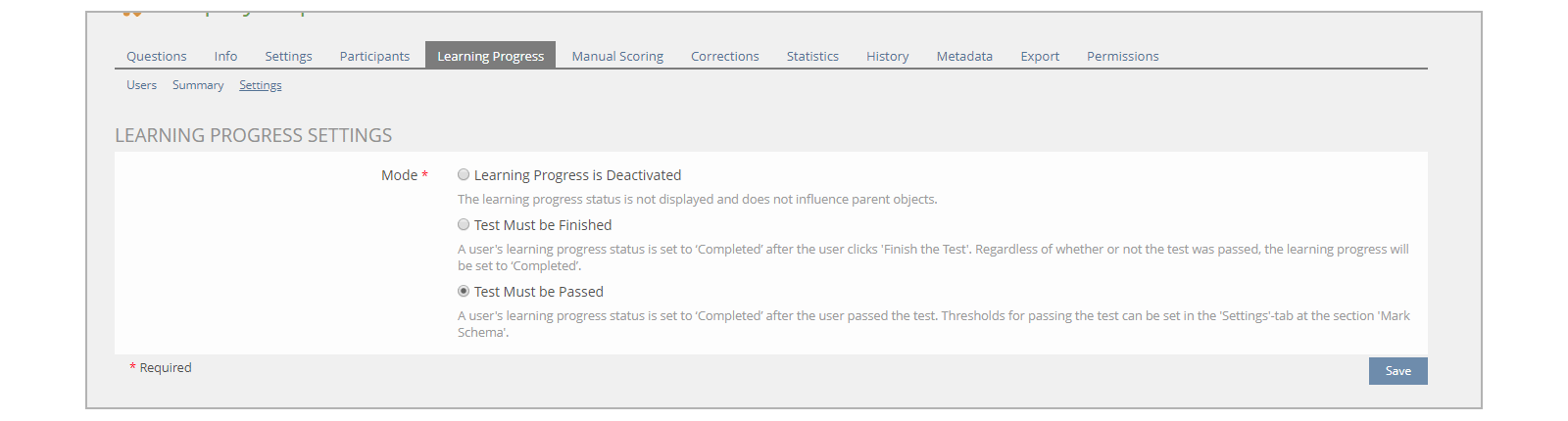
The ‘Learning Progress’ tab allows to you access and set learning progress information for the test itself and for registered participants.
Use the ‘Settings’ sub-tab to set the ‘Mode’, selecting how the test is scored as complete by the LMS.
Creating Question Pools
You will have three options:
- Option 1: New Question Pool Test
- Option 2: Import Question Pool Test
- Option 3: Copy Question Pool Test
Question Types
- Title - This is a required field. You can enter any title. If you use module and/or question numbers for the question title, this can make it easier to locate if changes are required. Include a “0” in front of single digit numbers—sorting will then appear in the correct order. (e.g., 01, 02, 03, …09, 10, 11)
- Author - This will be prefilled with the name assigned to the account you signed into ILIAS with
- Description - This is the description of your question. This area can be left blank.
- Question - Use the space provided to insert and format your question stem.
- Working Time - By default, this is set to 1 minute per question but can be changed
Other fields available will vary according to the question type selected.
Unless otherwise noted, question feedback is the same for each question type.
Note: In-depth ILIAS documentation about question types can be accessed online, https://docu.ILIAS.de/goto_docu_lm_5248.html
The question type is selected from a drop-down menu in ILIAS when you create a new question. There are 17 types of questions available in ILIAS.
Click each question type to view its description and functionality or scroll through the question types below.
The following options are available when creating/editing a Multiple Choice (Single Answer) question:
- Shuffle Answers - This will randomize the answer options. Disable for True/False or where options include “All of the above” and/or “None of the above”.
- Editor for Answers - The answer options can appear on one line or multiple lines. For multiple lines, select ‘Multi Line Answers’ in the dropdown.
- Use multiple lines unless circumstances dictate otherwise.
- Answers - Type your answer options in the space provided.
- If you are using images, click ‘Choose File’, then select the image that will appear. Click ‘Upload’ to send the image to ILIAS.
- Assign a point value to each answer option. Generally, points will total 1 per question.
- If you need to add or remove answer options, click the + or – symbol.
The following options are available when creating/editing a Multiple Choice (Multiple Answers) question:
- Shuffle Answers - This will randomize the answer options.
- Answering Limitation - With this setting, the number of answers participants can choose can be limited
- Editor for Answers - The answer options can appear on one line or multiple lines. Use multiple lines unless circumstances dictate otherwise.
- Answers - Type your answer options in the space provided.
- If you are using images, click ‘Choose File’, then select the image that will appear. Click ‘Upload’ to send the image to ILIAS.
- Assign a point value to each answer option. Generally, points will total 1 per question.
- If you need to add or remove answer options, click the + or – symbol.
A Kprim question is comprised of one question and exactly four answers. The learner must decide for every single answer which of two columns (Option Labels) it belongs in. 0 to 4 answers can be correct.
Example:

- Shuffle Answers - This will randomize the answer options.
- Editor for Answers - The answer options can appear on one line or multiple lines. Use multiple lines unless circumstances dictate otherwise.
- Thumbnail Size - This will be the size of the thumbnail created for an image that is uploaded to appear with the question.
- Option Labels - The two choices for each option can be selected from the suggested choices (right/wrong; +/-; applicable/not applicable; adequate/not adequate) or by selecting ‘Userdefined Labels’ and typing in your own choices (e.g., true/false).
- Points - Assign a point value to the entire question. Activate half-point scoring if you want the learner to get half point for getting only some of the options correct. A points value is mandatory for this question type.
- Answers - Type your answer options in the spaces provided.
- If you are using images, click ‘Choose File’, then select the image that will appear. Click ‘Upload’ to send the image to ILIAS.
- Use the radio buttons to identify each answer as one option or the other (e.g., Correct or Incorrect).
- Use the up/down arrows to change the order of the options.
The following options are available when creating/editing an Error Text question:
- Error Text - The passage to be analyzed is entered here, with the “error text” (what the learner is supposed to click) identified using either a hashtag # or double parentheses (( ))
- Text Size - Specify the size of the error text if you want it to appear a different size from the passage text.
Click ‘Analyze Error Text’. This will populate the options you have identified as “error text” (or the text the learner is supposed to select) into fields. You can then assign point values for each option correctly selected. Entering information into the Correct field will provide that information as “best solution” text in feedback should the learner review question feedback.
- Points
- Assign a point value to each option correctly selected.
- Enter the negative points for each selected word that is not in the list of marked errors.

You can upload any image to use and create the image map areas with ILIAS or you can import an HTML file containing the image map for your image.
The following options are available when creating/editing a Hot Spot question:
- Mode - Choose ‘Single Choice’ or ‘Multiple Choice’ to identify whether the learner must find one available point/area or choose one from multiple points/areas provided.
- Image - Click ‘Choose File’ to upload an image to ILIAS
- Click one of the ‘Add’ area buttons and identify its location on the image. You can identify the correct area and any distractor areas you want to mark.
- For each area marked on the image, you can add Hint text
- Assign point values to each identified area
- Import Image Map - Click this to import an image map file created in HTML.
A cloze question is an activity where the learner uses clues from the context to "fill-in-the-blanks" in a sentence or text. A passage of text is presented with certain key words missing and replaced with blanks. The blanks consist either of a text or a numeric gap where the learner must fill in text on their own or of a select gap where the learner has to choose from existing choices (drop-down). A mix of both techniques is also possible.
For example:

- Cloze Text
- Use the space provided to insert and format your text that will contain the blanks.
- To identify a gap set the cursor to the position of your choice and click Insert Gap. This will replace the selected text with a gap and provide a section below to edit the parameters.
- Text Matching Method
- Select from the drop-down options one of the methods to compare the learner’s input with the predefined solutions. For the scoring of text gaps, you are able to select from a variation of:
- Case insensitive
- Case sensitive
- Levenshtein distance (1 - 5)
- The Levenshtein distance is defined as the minimal number of characters you have to replace, insert, or delete to transform the solution into the learner input.
- Text Field Length
- Specify the number of characters allowed in the text entry box or allow ILIAS to set a default length. (If you enter a value, all text gap fields, not providing their own maximum character limitation, as well as all numeric gap fields will be created with a fixed length of this value, so entering more than the allowed characters is not possible. Note, that for numeric gaps the decimal separator is counted as a regular character.)
- Identical Scoring
- If selected, gaps with identical solutions will be scored, even if the same solution was used twice or more. If not selected, only the first occurrence of the same solution will be scored.
Editing Gaps
Select the gap type from the drop-down options and edit the fields accordingly.
- Text Gap
- Text Field Length: If you enter a value greater than 0, this text field gap will be created with the fixed length of this value. If you do not enter a value, the text field gap will be created with the value of the global fixed length.
- Values: Type in the correct answer text and the point value awarded. If you need to add or remove answer options, click the + or – symbol.
- Select Gap
- Shuffle Answers: Click if you want the order of the drop-down options to be shuffled each time.
- Values: Type in each drop-down option and the point value assigned. If you need to add or remove answer options, click the + or – symbol.
- Numeric Gap
- Text Field Length: If you enter a value greater than 0, this text field gap will be created with the fixed length of this value. If you do not enter a value, the text field gap will be created with the value of the global fixed length.
- Value: Type in the correct numeric value for the answer. You may enter an upper and/or a lower limit for the numeric value to widen the range of correct answers for this gap. If you don't enter a lower or an upper limit, the value itself defines the lower or upper limit.
- Points: Type in the point value assigned for the answer.
Click ‘Save and Return’ to save your question and return to the Questions tab; or click ‘Save’ to save your work and remain on the screen.
A numeric question requires an answer to a mathematical operation which can result in an exact answer or a floating-point approximation. The learner is required to enter the answer into a blank provided.
For example:

- Maximum Number of Characters - If you enter a value, the field for the numerical answer will be created with a fixed length of this value, so entering more than the allowed number of characters is not possible. If left blank, ILIAS will use a default field length.
- Points - Assign a point value to the question.
- Range - You may enter an upper and/or a lower limit for the numeric value to widen the range of correct answers for this gap. If you don't enter a lower or an upper limit, the value itself defines the lower or upper limit.
Feedback
You can only specify Common Solution feedback for this type of question. Type the feedback for the correct solution, and feedback to be used for any wrong answer.
Click ‘Save’ to save your work.
This is a question type in which the author defines the general question – the calculation approach for a certain value, i.e., the correct formula – however, the concrete values themselves are automatically and randomly chosen by ILIAS from a range.
For example:

Note: ILIAS documentation states: “For creating formula questions, mastery of a particular formula language is necessary as it also appears, e.g., in spreadsheet software.” Some of the instructions do get quite complicated, but this could be useful for simple formula calculations.
The following options are available when creating/editing a Formula question:
- Question - Use the space provided to insert and format your question.
- Define variables if desired, so that the formula question is not the same every time. Click ‘Parse Question’ to create editing forms for variables and results. Editing forms for variables and results are created below.
- Variable Editing - Specify the desired range, units, and precision for each variable. ILIAS will use numbers from these parameters in the question and answer according to the formula.
- Result Editing - Create the formula. You can use your predefined variables and the defined result, and use other mathematical functions as required.
- Specify the desired range, units, and precision for each variable. ILIAS will use numbers from these parameters in the question and answer according to the formula.
- Specify the result types allowed in the answer.
- Points - Assign a point value to the question.
Feedback
You can only specify Common Solution feedback for this type of question. Type the feedback for the correct solution, and feedback to be used for any wrong answer.
Click ‘Save’ to save your work.
Learners are to enter text of a predefined number of terms, which can be an arbitrary selection (subset) from a more comprehensive set of correct answers. The learner's answers will be compared and rated with the predefined answers. Thus, it is a special case of a text field gap.
For example:

Note: Allow for variability in learner answers that may match the requested input. Additional options with positive value points may need to be entered.
The following options are available when creating/editing a Text Subset question:
- Number of Requested Answers – Specify the number of answers the learner must enter.
- Maximum Points Available – Enter the number of points available for the question.
- Text Matching Method – Select from the drop-down options one of the methods to compare the learner’s input with the predefined solutions. For the scoring of entered text you are able to select from a variation of:
- Case insensitive
- Case sensitive
- Levenshtein distance (1 - 5)
- The Levenshtein distance is defined as the minimal number of characters you have to replace, insert, or delete to transform the solution into the learner input.
- Answers
- Type in the accepted answers and assign a point value to each. If you need to add or remove answer options, click the + or – symbol.
Feedback
You can only specify Common Solution feedback for this type of question. Type the feedback for the correct solution, and feedback to be used for any wrong answer.
Click ‘Save’ to save your work
Vertical ordering questions require the learner to move pictures or terms into the correct order vertically. In vertical ordering questions, terms or images may be sorted.
The following options are available when creating/editing a Vertical Ordering question:
- Minimum Height - This is the minimum height in pixels for term and definition/picture items during the test output. This can be left blank.
- Points - Assign a point value to the entire question.
- Answers/Ordering Elements - Create the items to be ordered, in the required order for a correct answer.
- Use answer terms: Type in the terms to be used. If you need to add or remove items, click the + or – symbol. Click the up and down arrows to reorder the items in Term Definition view; or drag to reorder in Term Nesting view.
- Use answer pictures: Choose image files and upload to ILIAS. If you need to add or remove items, click the + or – symbol. Click the up and down arrows to reorder the items in Picture Definition view; or drag to reorder in Picture Nesting view.
Ordering Question: Horizontal
Horizontal ordering questions require the learner to move pictures or terms into the correct order horizontally. In horizontal ordering questions, only terms can be sorted.
The following options are available when creating/editing a Horizontal Ordering question:
- Ordering Text - Type in the text elements that are to be put in order. Type them in the required order for a correct answer.
- Text Size - Enter the text size of the drag items text in percent if you want another size than 100 percent (current text).
- Points - Assign a point value to the entire question.
Matching can be text to text, text to image, image to text, or image to image.
The following options are available when creating/editing a Matching question:
- Shuffle Answers - You can choose to shuffle terms only, definitions only, both terms and definitions, or none.
- Thumbnail Geometry - Specify the size of the images that appear.
- Matching Mode - Use the radio buttons to choose whether one term matches one definition, or multiple matching is possible. (1:1 or n:n)
- Definitions - Definitions are the targets. Type in the target/definition text or upload an image to ILIAS. If you need to add or remove items, click the + or – symbol.
- Terms - Terms are the drag items. Type in the drag item/term text or upload an image to ILIAS. If you need to add or remove items, click the + or – symbol.
- Matching Pairs - Use the drop-down lists to identify which terms correctly match to which definitions. Assign a point value for each. If you need to add or remove items, click the + or – symbol.
By default, the points for answering an essay question are set to 0. The test author must set the points manually in the evaluation screen after the test containing essay questions is finished.
You may also use an automatic scoring based on keywords if you enter the keywords in the Optional input of keywords section at the bottom of the page. Text matching method can be done using a Levenshtein distance -- between two words this is the minimum number of single-character edits (i.e., insertions, deletions, or substitutions) required to change one word into the other – so that if the learner gets an answer one character or two (or three) off, it could still be marked as correct.
The following options are available when creating/editing an Essay question:
- Maximum Number of Characters
- Type in the character limit you wish to allow the learner for their answer. If nothing is entered, the maximum number of characters for this answer is unlimited.
- Text Matching Method - Select from the drop-down options one of the methods to compare the learner’s input with the predefined solutions. For the scoring of entered text, you are able to select from a variation of:
- Case insensitive
- Case sensitive
- Levenshtein distance (1-5)
- The Levenshtein distance is defined as the minimal number of characters you have to replace, insert or delete to transform the solution into the learner input.
- Scoring Code - Use the radio buttons to select the way the question is to be scored. Type in keywords in the Answer Text field. If you need to add or remove items, click the + or – symbol.
- No Automatic Scoring: No points are granted until manual scoring is done by tutor.
- Automatic Scoring with Keywords on Finding ANY: For ANY found keyword the corresponding points are granted automatically. Type in the answer text keywords and allot points to be awarded
- Automatic Scoring with Keywords on Finding ALL: The points are granted automatically if ALL keywords are found.
- Automatic Scoring with Keywords on Finding ONE: The points are granted automatically if at least ONE keyword is found.
You can also:
- Set a maximum file upload size, or let ILIAS choose
- Define which file types can be uploaded or leave open to all types
- Maximum file upload size - Type in the maximum size in bytes that should be allowed for file uploads. If you leave this field empty, the maximum size will be chosen by ILIAS.
- Allowed File Extensions - Type in any file extensions that will be accepted for upload for this question.
- Points - Assign a point value to the entire question.
- Completed by Submission - By clicking this box, the submission of at least one file causes the completion of this question, granting the maximum score for this question. The score can be manually changed later. Switching this setting does not affect already submitted solutions.
Feedback
You can only specify Common Solution feedback for this type of question. Type the feedback for the correct solution, and feedback to be used for any wrong answer.
Click ‘Save’ to save your work.
The learner must choose an answer from a long drop-down list or fill in an auto-completion text field based on item lists. The user gets an assignment text with one or more gaps. A gap is defined as a text gap or a select gap.
The input field for a select gap is a simple drop-down list that shows all items in an alphabetical order initially. The user must select one of these items to complete the gap.
The input field of a text gap works like an auto-completion field. It does not show any item prior to an initial input of the user. Once the learner begins to enter text, a filtered list of items matching the input is displayed. The items are shown in an alphabetical order. The learner must select one of the shown items to complete the gap.
The creation/editing will be similar to the editing workflow of the Cloze question type. Gaps are to be defined within an assignment text. The gap type can be a text field or a dropdown list.
Editing a single gap
The gap type must be set to "select gap" or "text gap". Both gap types make use of item lists.
The item lists are created by uploading a text file with one item per line. After uploading the item list file, the items will be presented in a multi-line select field called "Distractors". An additional empty multi-line select field called "Correct Items" is shown next to the distractors field. Correct answers can be moved from the distractors field to the field with correct items. Within the gap section there is no possibility to edit the items itself. The currently configured item list can be replaced with the upload of a new item list file.
A points value must be defined for each single gap.
Feedback
You can only specify Common Solution feedback for this type of question. Type the feedback for the correct solution, and feedback to be used for any wrong answer.
Click ‘Save’ to save your work.
A Java applet is a small application written in the Java programming language. A Java Applet Question is an autonomous java applet which can represent any type of question, even the question types already defined in ILIAS. To allow such applets to integrate in ILIAS tests, the applet creators must use a simple interface defined by ILIAS to ensure communication between the ILIAS system and the applet to exchange the solutions and the points reached by the users.