


Storyline
Tabs
Storyline
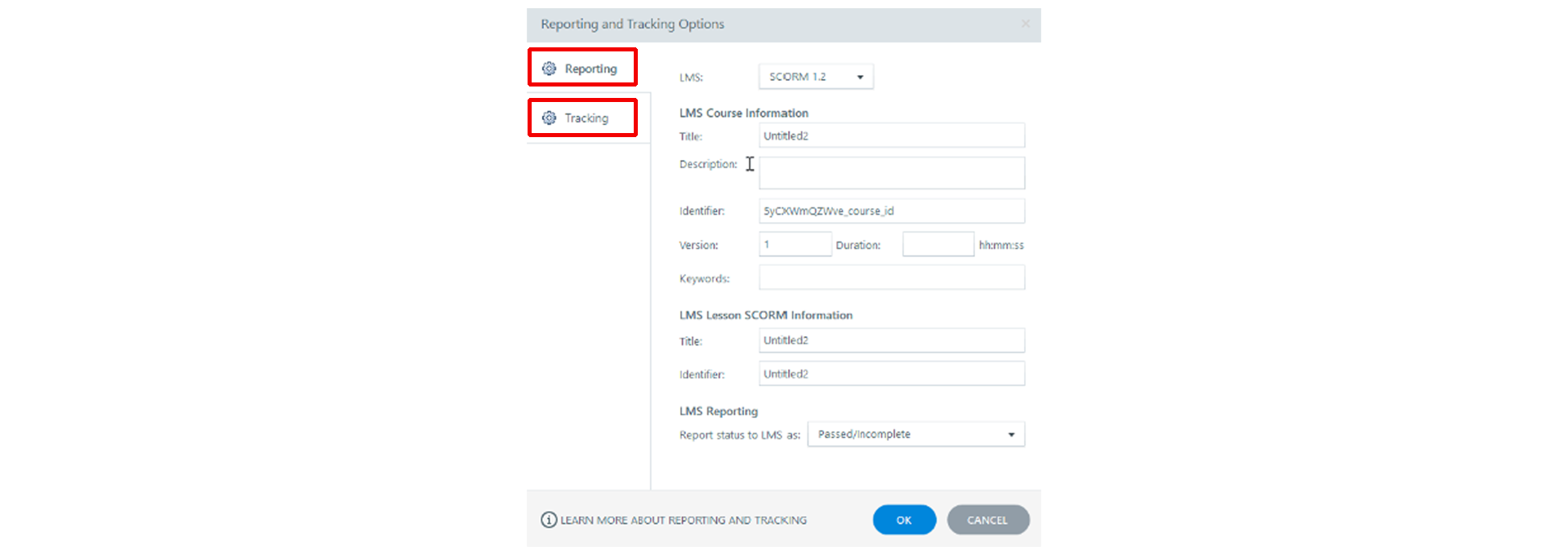
There are only a few setting that deal with reporting when it comes to Storyline and ILIAS.
SCORM
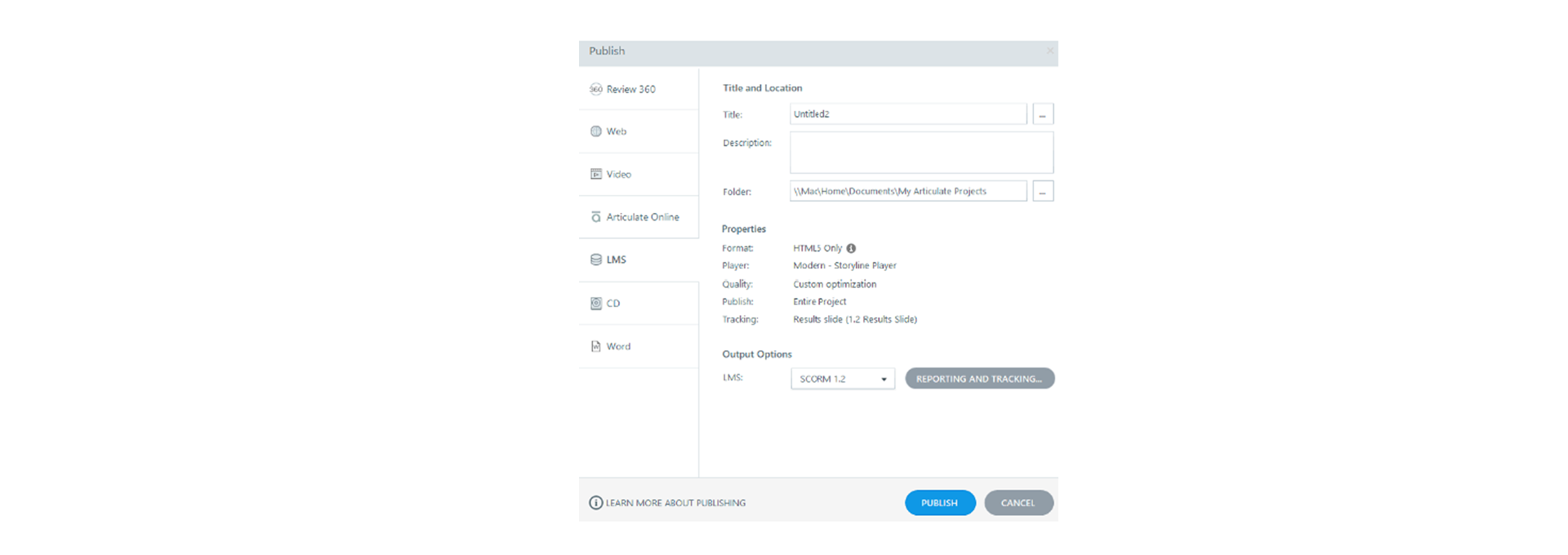
In storyline, choose which SCORM type you are going to publish to, either SCORM 1.2 or SCORM 2004 (should use 3 or 4 edition) 2004 offers more robust reporting abilities whereas 1.2 is limited.
SCORM 1.2 is OK if you do not require specific details like completion status, test score, and/or bookmarking.
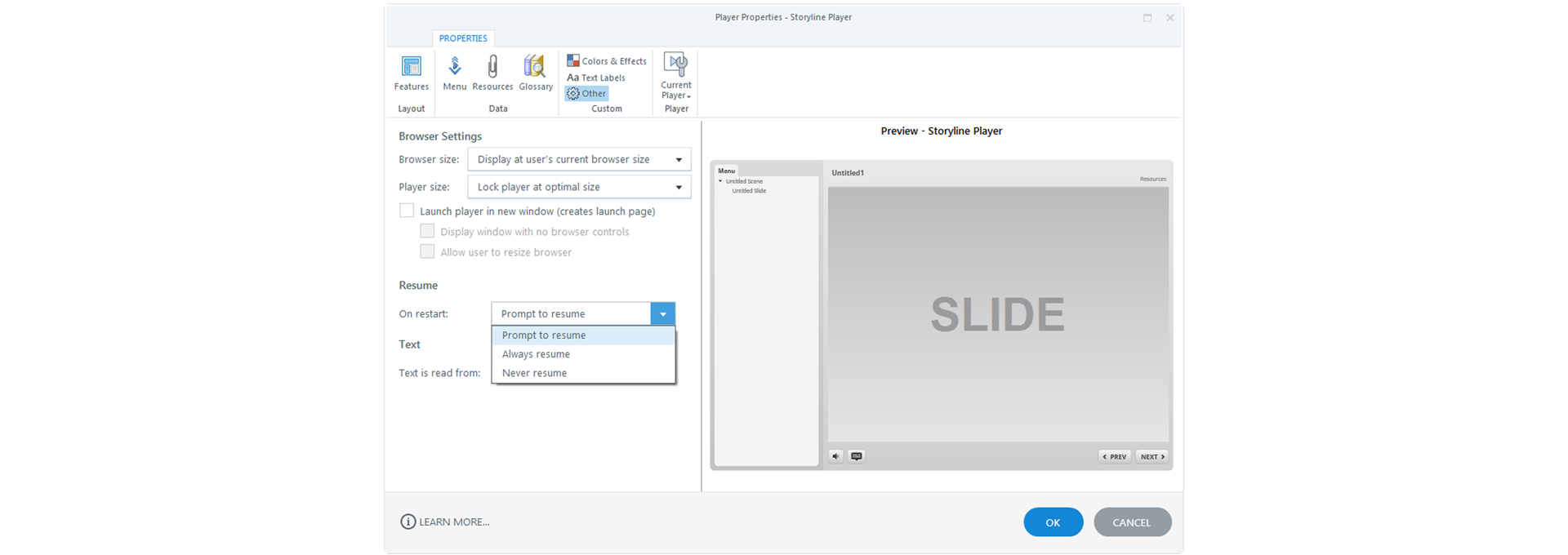
Bookmarking
- 'Prompt to resume',
- 'Always resume', and
- 'Never resume'.
Completion Reporting Settings
- ‘Complete/Incomplete’,
- ‘Complete/Failed’,
- 'Passed/Incomplete’ or
- ‘Passed/Failed’.
Tracking
Using tracking, you can choose to use a trigger like a final assessment score, or a button press on a screen, otherwise, you can set # of screens viewed in the project either as a total of 'X' slides from 'Y' total slides, or a percentage of total slides. When the course is closed, there is a function called to send any information to the LMS.