



Creating Questions
Tabs
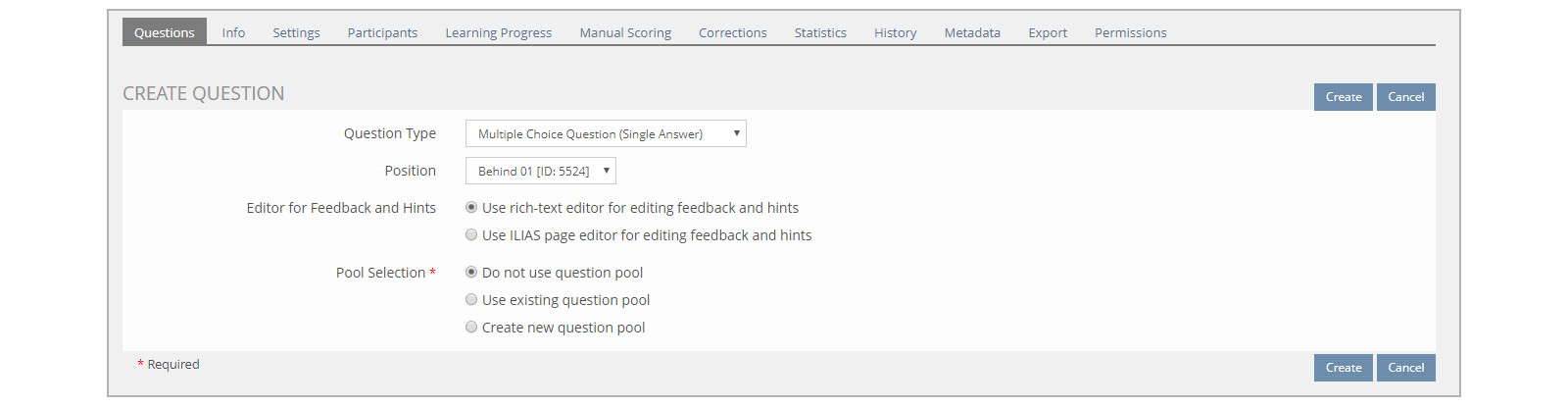
On the Questions tab, click ‘Create Question’.

- Question Type
- Position (will only appear after at least one question is added)
- Editing mode for Feedback and Hints
- Pool Selection

Question Types
- Multiple Choice Question (Single Answer)
- Multiple Choice Question (Multiple Answers)
- Multiple Choice Question (Kprim Answers)
- Error Text
- Hot Spot/Image Map Question
- Cloze Question
- Numeric Question
- Formula Question
- Text Subset Question
- Ordering Question (Vertical)
- Ordering Question (Horizontal)
- Matching Question
- Essay Question
- File Upload Question
- Flash Question
- Java Applet Question
Click each panel to learn more about the elements.
This option allows you to define the position the question you are adding will take in relation to other questions that have already been added to the test. This option will not appear when you are adding your first question.
- Use rich-text editor for editing feedback and hints (Default)
- This option will provide you with an advanced editor for inputting question text
- Use ILIAS page editor for editing feedback and hints
- This option will provide you with a basic editor for inputting question text
- Do not use question pool
- Question will be created within the test
- Use existing question pool
- Question will be saved to an existing pool that was created independent from the test. If this option is selected, you will need to select the pool that you would like the questions to be saved to. Use this if you will use the other questions in that pool and if the added question can be used in other tests that use that pool.
- Create new question pool
- Question will be saved to a new pool that you will create independent from the test. If this option is selected, you will need to provide the name of the pool you would like to create.
After you have selected your preferred options, click ‘Create’ to create your question. The ‘Edit Question’ tab will open for your new question.
Question Editor
Fields common to all questions include:
- Title - This is the title of your question. (Mandatory) For ease of identification, use your question as the title. This will make it easy to locate if edits are required at a later time.
- Author - This is the person who created the question. This will be prefilled with the account you are logged in under.
- Description - This is a description of the question.
- Question - This is the area where you will type in your question stem. Depending on the editing mode selected, advanced features may be enabled or disabled such as text formatting, HTML, LaTeX, etc.
- Working Time - Expected time it should take to complete the question. This is used to estimate the length of the test. The ILIAS default setting for this is one (1) minute.
- Answers - Most question types have some sort of field in which to enter individual answer option text. There are four areas of importance in this section:
- Answer Text - Type the answer text into this field (see Editor for Answers)
- Answer Image - If you are using an image, choose the supported image file you would like to use, and then click ‘Upload’.
- Points - Define the value of points the answer is worth. Correct answers are typically valued at ‘1’, while incorrect answers are worth ‘0’. Each answer must have an assigned point value.
- Actions - Use the ‘+’ and ‘-’ buttons to add and remove answers
- Editor for Answers - Answer options can be provided on a single line or across multiple lines if long in length. These fields are expandable.
After you have selected your preferred options on the Edit Question tab, click ‘Save’ to save your question but remain on the question editor screen, or click ‘Save and Return’ to save your question and return to the Question tab.
Returning to the Question tab will allow you to add, modify, move, and delete questions.
Images, Videos, and Additional Text
You can also add additional text or media items (such as video, text, images, etc.) to a question page, if needed. For this, you will need to view the question in ‘Page View’.
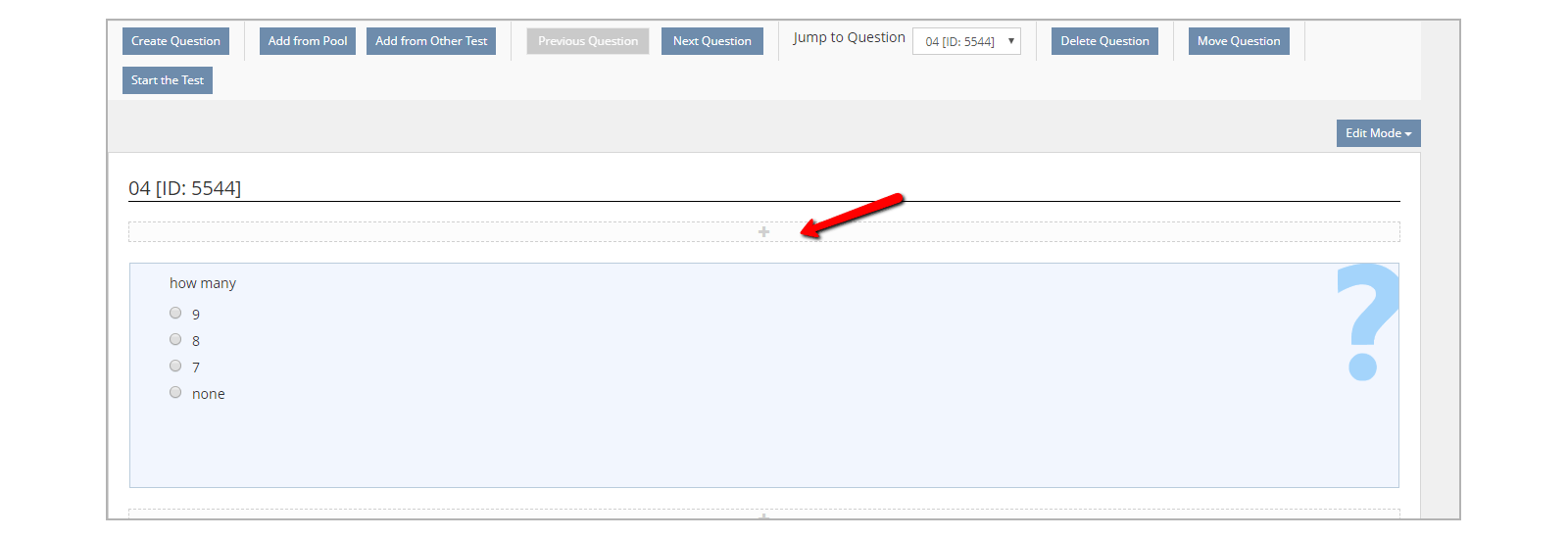
On the question page, click the ‘+’ button above or below the question where the media is to be inserted, then select the type of media to insert. This will then take you to the settings screen for the specific type of item you have selected.
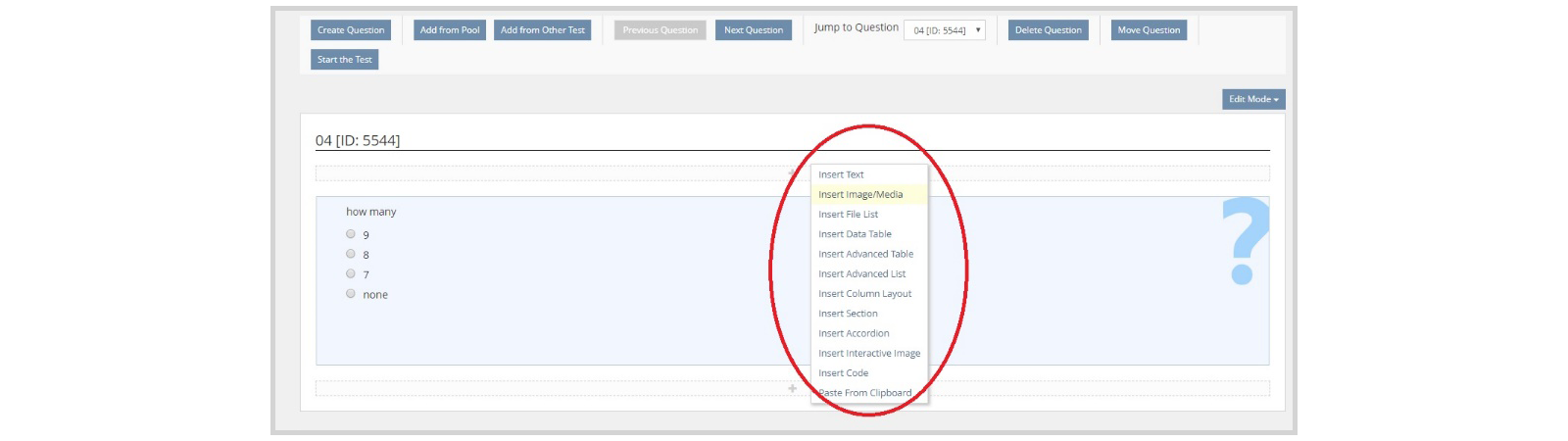
Once you have made your changes and clicked Save, you will need to click the blue ‘Finish Editing’ button at the top of the screen. Click ‘Back to the calling test’ at the top to view your updated question page.
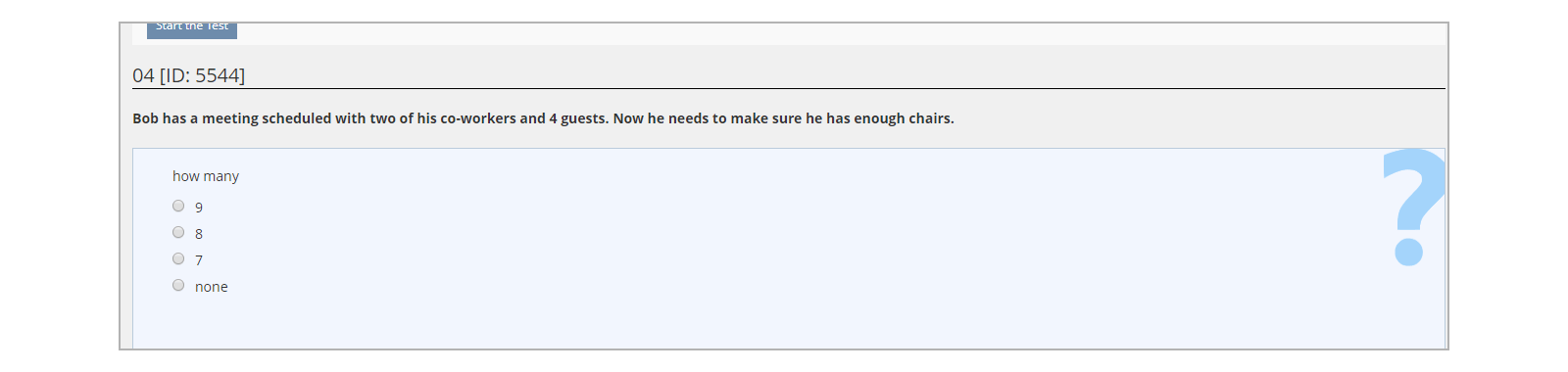
The following examples show (a) an image added and (b) scenario text added:
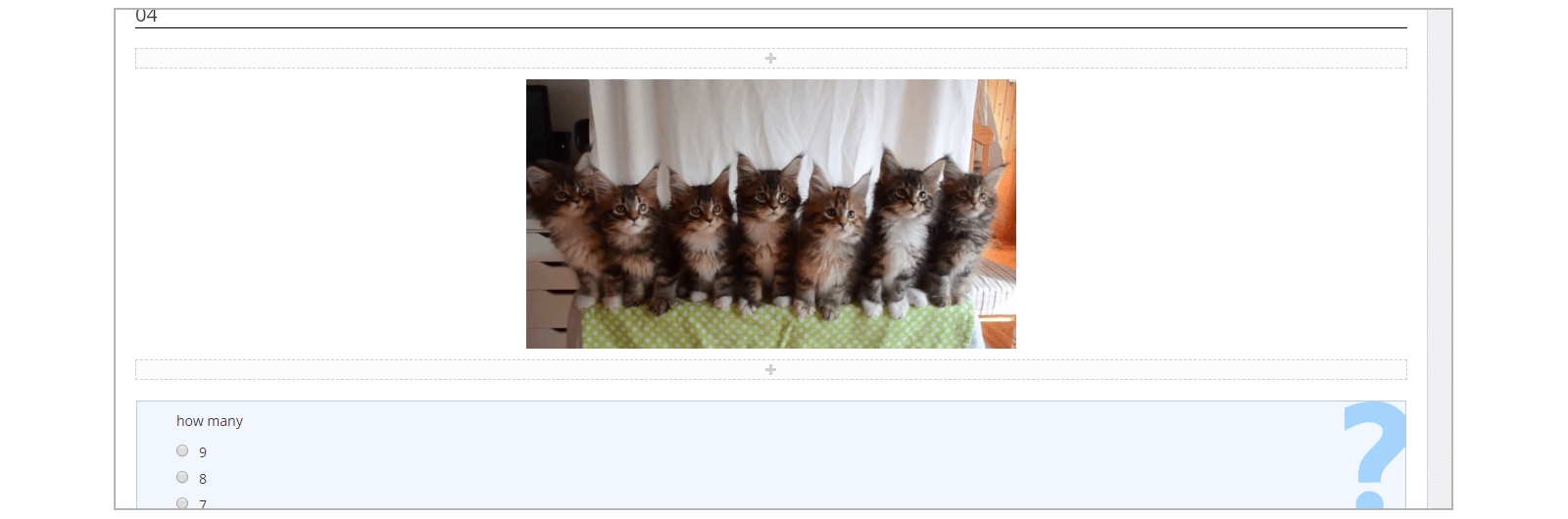
Note: Text appearance on screen can be formatted using the editing options
Feedback
Unless otherwise noted, question feedback is the same for each question type. You can specify feedback for the question on the Feedback tab, using one of two options:
- Common solution Feedback - Type the feedback text for the correct solution, and feedback to be used for any wrong answer
- Feedback for every answer - Enter answer-specific feedback. Using the radio buttons, you can choose whether feedback will display for all answers, for all chosen/selected answers, or for all correct answers.
Some question types only allow Common Solution feedback.
Views
Click each panel to review the different views that you can use when working in the Questions tab.
Page view displays each question and items you have added to your test page by page. It displays the question text, as well as the answer options.
Every page in a test can contain only one question. When the question is deleted, the associated page automatically disappears.
In Page View, navigate to a specific question using the ‘Jump to Question’ dropdown or the ‘Previous Question’ and ‘Next Question’ buttons.
List view lists only the question title, type, value, and whether the question is from a pool. This view allows for quick movement, sorting, and deletion of questions.
To remove a question in this view, check the box to the far left of the Question title, then in the drop-down at the top or bottom of the list select ‘Remove’ and click ‘Execute’.
To move a question in this view, insert the desired number related to the location you would like the question to take. Sorting numbers start at “10” and increase in multiples of ten for each question added (e.g., Question 10 is first, Question 20 is second, etc.). After you have renumbered your questions, click ‘Save Order’ and your question list will be reordered.
This view allows you to print and export your questions to a PDF document. Click ‘Print’ to print, and ‘PDF Export’ to export. Correct answers will be identified by a filled radio button.
This view allows you to print and export your questions to a PDF document. Click ‘Print’ to print, and ‘PDF Export’ to export. Correct answers will not be identified.
Click here to learn how to Create Question Pools.